Support
Guides and answers to help your event go smoothly.
In this section
Need a hand? Email support@byopa.us.
Keep your device awake during a live event
Phones and laptops go to sleep when you don't touch them — and when that happens, your device drops out of the live event and your audio cuts off. The fix takes about a minute. Do it once before you go live, and try it out during a Sound Check so there are no surprises during the real thing.
Turn off Auto-Lock. On iPhone and iPad, sleep is controlled by the Auto-Lock timer.
-
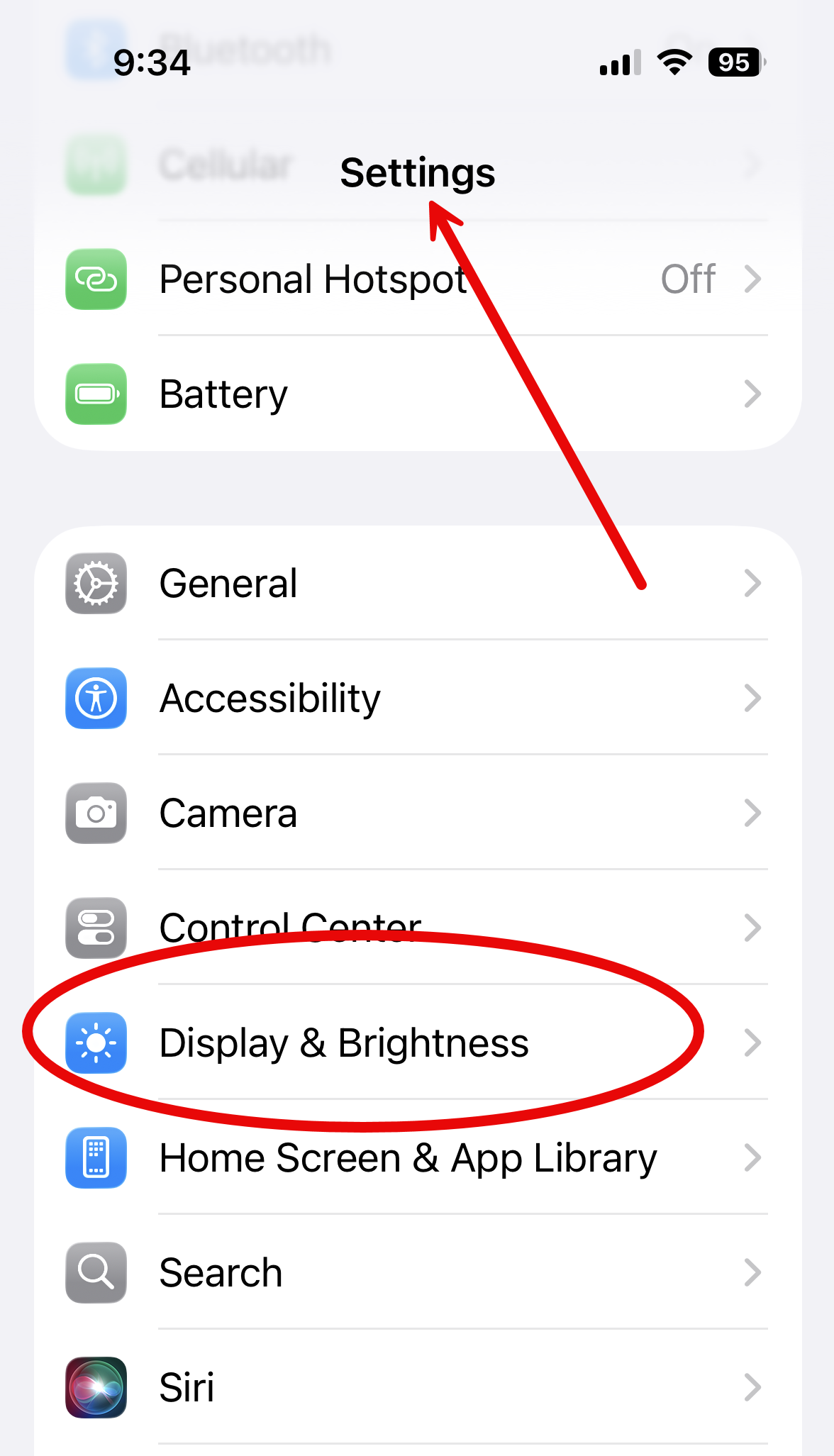
1Open Settings → Display & BrightnessFrom the Home Screen, tap Settings, then scroll to Display & Brightness.
-
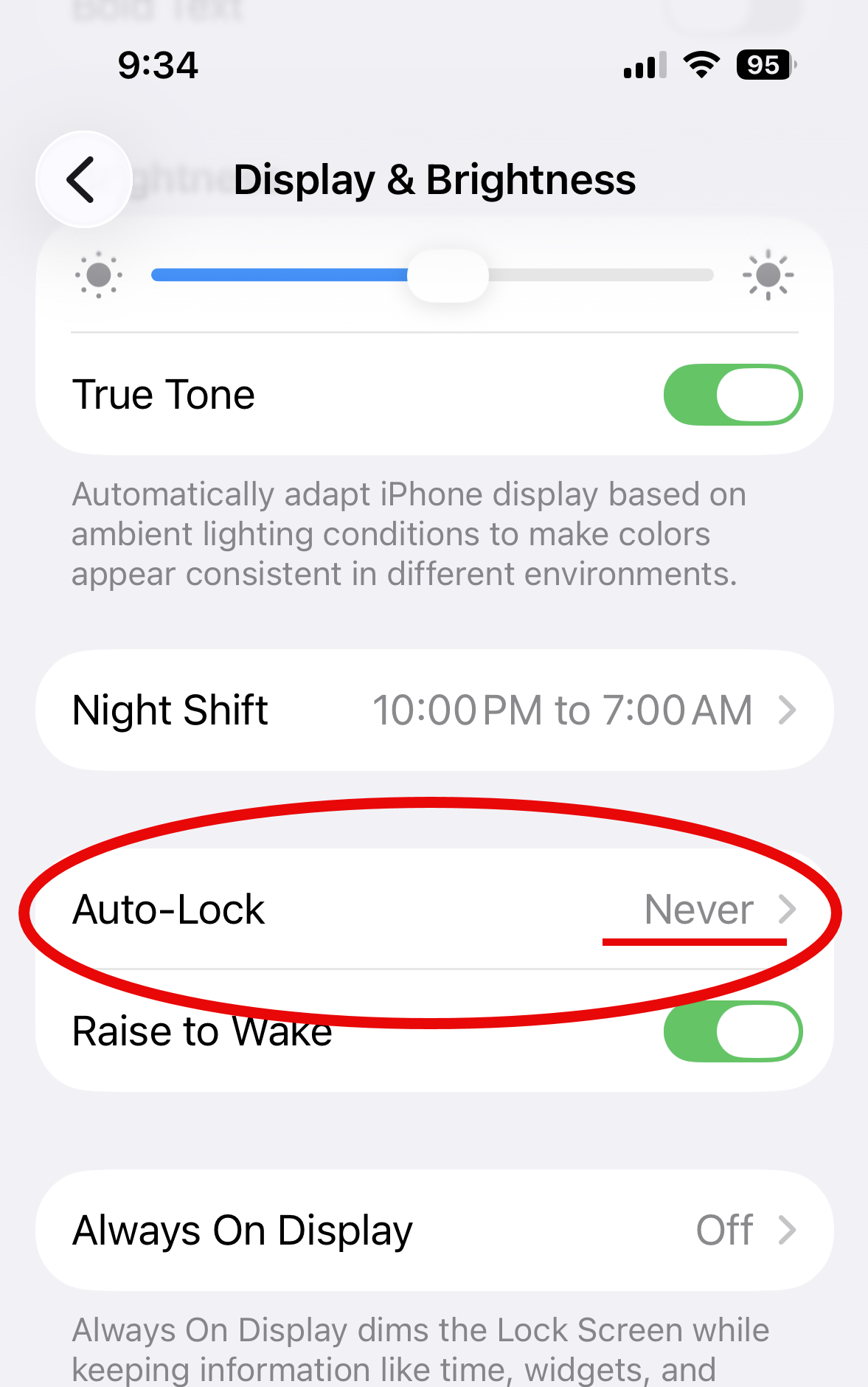
2Set Auto-Lock to “Never”Tap Auto-Lock and choose Never. This stops your screen from sleeping and dropping you out of the event. Remember to set it back afterward to save battery.
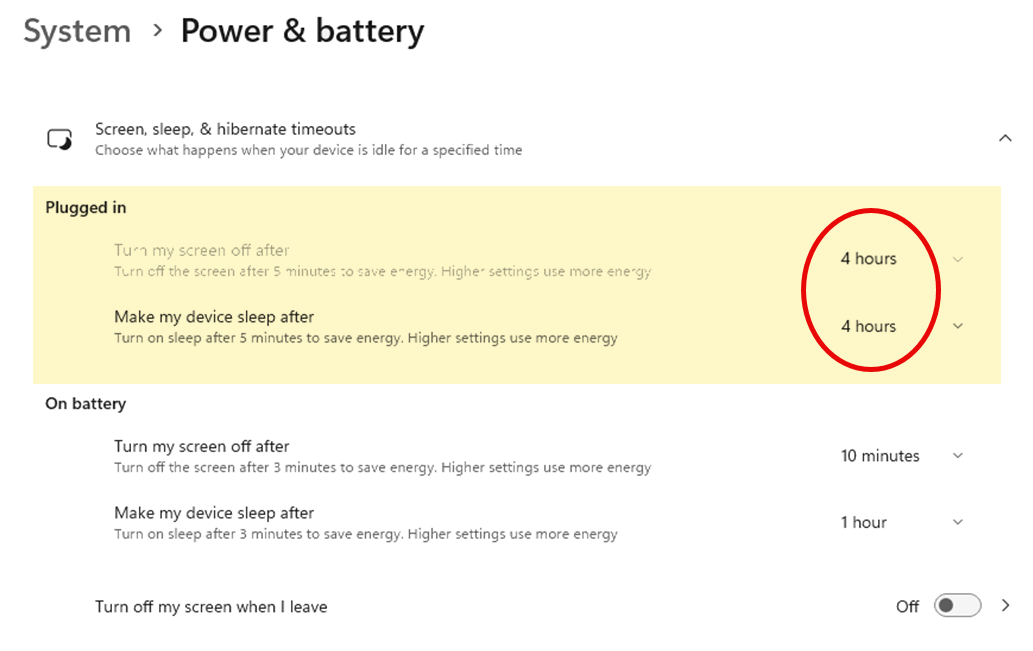
Extend the sleep & screen timeouts. On Windows 11, set the "Plugged in" timers long enough to cover the event.
-
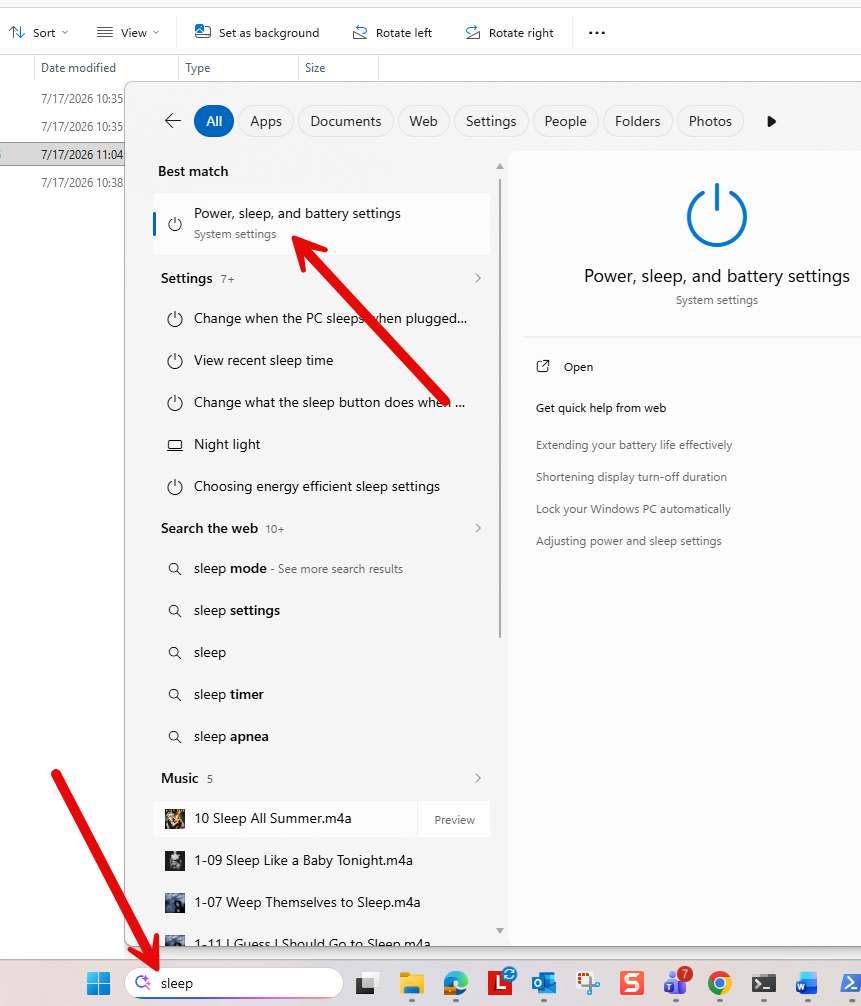
1Search for “sleep”Click the taskbar search box, type sleep, and open Power, sleep, and battery settings.
-
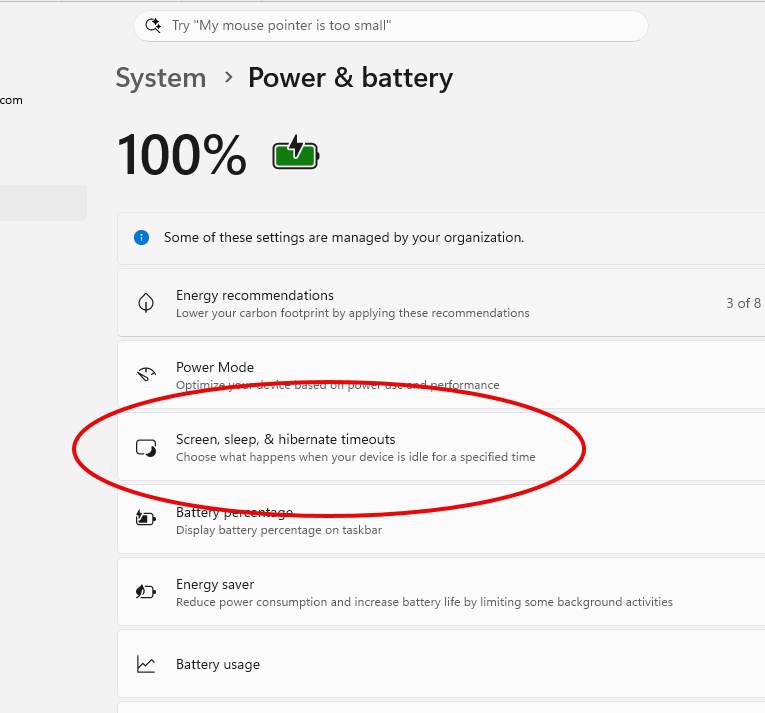
2Open “Screen, sleep, & hibernate timeouts”Under System → Power & battery, expand Screen, sleep, & hibernate timeouts.
-
3Set the timeouts to a long timeFor Plugged in, set both Turn my screen off after and Make my device sleep after to a duration that covers your whole event (e.g. 4 hours or Never).
Using an external mic or audio interface (Music events)
For Live Music events, an external microphone or a USB audio interface (like a Focusrite Scarlett) sounds dramatically better than a built-in mic. A couple of quick checks make sure your device actually uses it — and on Apple devices, that Safari picks the interface as the input.
-
1Plug in before you open the eventConnect your mic or interface first, then open the event page. Safari chooses the input device when the page loads, so it needs to already see the interface.
-
2Allow the microphoneWhen the browser asks to use your microphone, choose Allow. On a Mac, also check System Settings → Sound → Input and confirm your interface is selected there.
-
3Make sure Safari picked the interface (not the built-in mic)If it sounds like the built-in mic, Safari grabbed the wrong input. Set your interface as the input in System Settings → Sound (Mac), then quit and reopen Safari with the interface connected and rejoin the Sound Check.
-
4iPhone / iPad powerSome interfaces (e.g. the Scarlett 2i2) draw more power than an iPhone supplies. If you see “accessory needs too much power,” connect through a powered USB hub.
-
5Set the event to Music & do a Sound CheckIn the event's options, set the Audio Profile to Music so we don't apply speech noise/echo processing. Then run a Sound Check to confirm levels and that it sounds full and clean.